
S3 viewer — preview files without downloading
By Clement Baranger ·
In short: an S3 object has no public URL by default, so pasting its path into a browser returns AccessDenied. The three ways to look at one without pulling it to disk are a presigned URL, the provider's web console, or a desktop client. Whichever you use, the object's Content-Type decides whether the browser displays the file or downloads it — and uploads frequently set that header wrong.
Why the object does not just open
Two things stand between you and a preview.
The object is private. Buckets are private at creation, and the right fix is almost never to make them public. A viewer therefore needs credentials, and a plain URL carries none.
The browser needs to be told what the file is. S3 stores a Content-Type with every object and returns it as a response header. A JSON file stored as application/json renders in the browser; the same file stored as application/octet-stream triggers a download instead.
Option 1: a presigned URL
A presigned URL is the object's address plus a signature and an expiry, so anyone holding it can read that one object until it expires — no credentials, no bucket policy change.
aws s3 presign s3://my-bucket/report.pdf --expires-in 300
Good for: showing one file to someone outside your team, or opening something quickly from a terminal.
The limit is that it is per object. Browsing a prefix means generating a URL for every file you want to look at.
Option 2: the provider's web console
The AWS S3 console opens an object in a new tab through a presigned URL, and the consoles of R2, Backblaze B2 and Wasabi offer the same thing. No install, works from anywhere you can log in.
The limit is navigation. A console lists a page of keys at a time, and finding one file in a prefix with hundreds of thousands of objects means paging through them or already knowing the key.
Option 3: a desktop client
S3 Explorer connects with your own credentials and opens an object in place, without writing it to disk first.
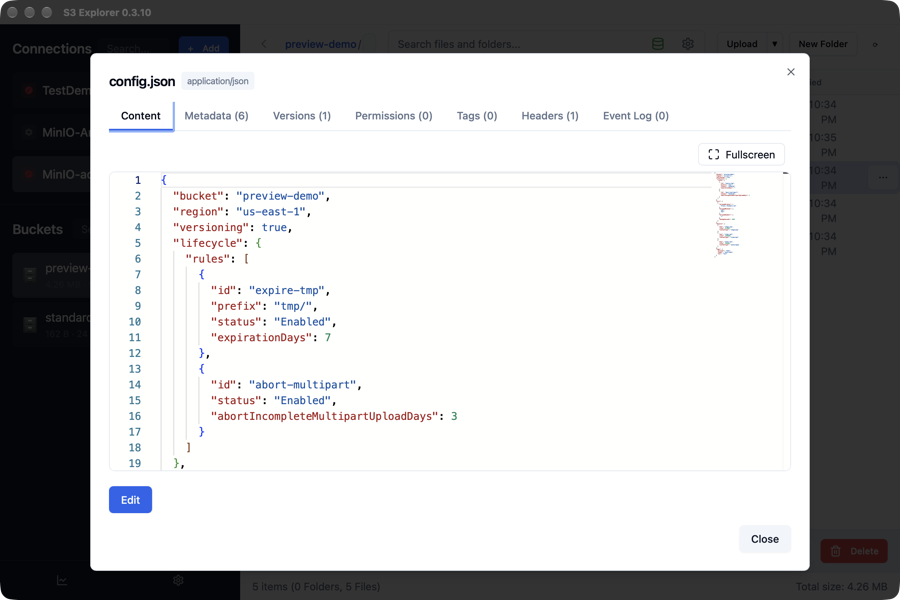
Text, code, JSON, YAML, CSV and logs open in a syntax-highlighted editor, with a minimap for long files and an Edit button that writes back to the same key.
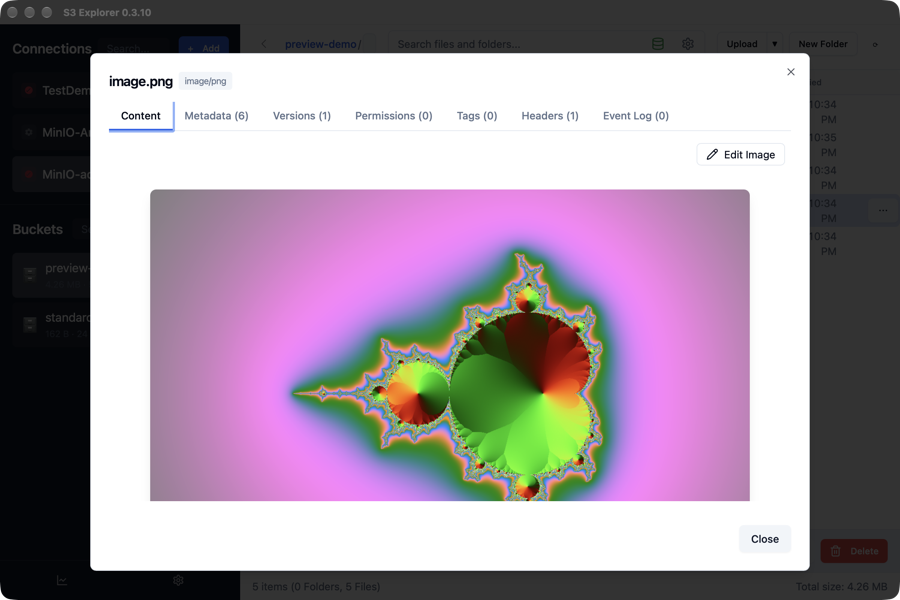
Images open in a viewer that also crops, rotates and annotates, saving the result as PNG or JPEG.
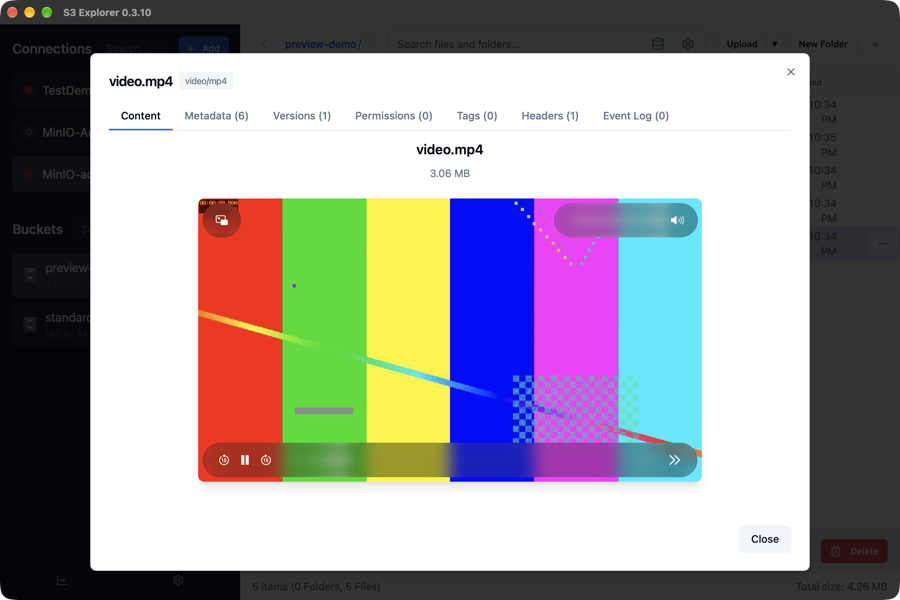
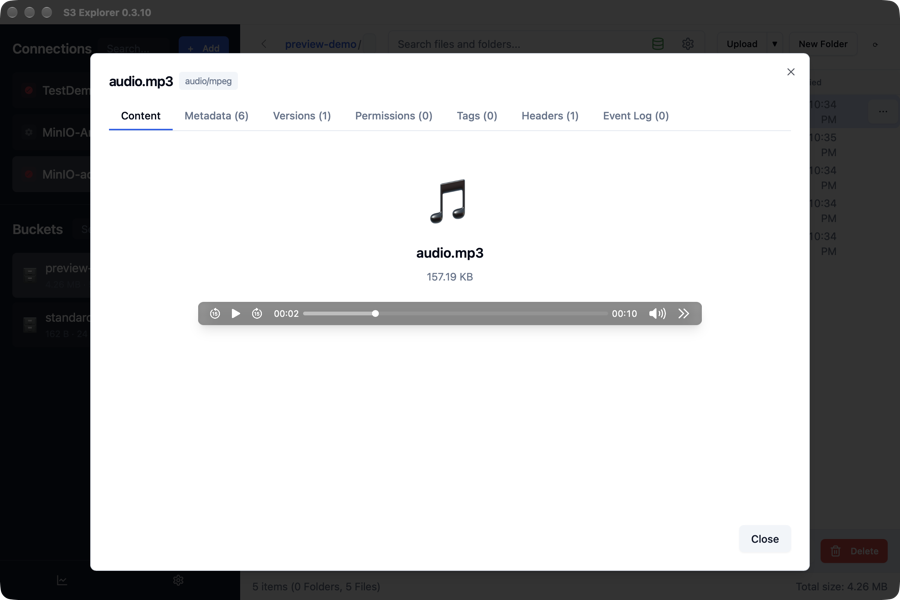
Video and audio play in the window instead of being fetched first.
PDF renders inline. Anything else offers a download rather than pretending to show it.
The same dialog carries tabs for metadata, versions, permissions, tags, response headers and an event log, so working out why an object behaves oddly does not mean leaving the viewer.
Large objects are guarded rather than loaded blindly: past a size set in the settings it warns before fetching, and past a second threshold it stops and offers the download instead.
It keeps a local index of the bucket, so searching a bucket with millions of objects does not mean paging through listings. The free version has every feature, with up to 5 connection profiles.
See the connection guides for the endpoint and region each provider expects.
The Content-Type trap
This is the thing that wastes an afternoon.
Many upload paths do not look at the file extension. The AWS CLI guesses from it, but SDK calls, rclone with some flags, and anything writing a raw stream will store application/octet-stream or binary/octet-stream unless told otherwise. The object is intact; it simply announces itself as an unknown binary, so every viewer downloads it rather than displaying it.
Check what an object claims to be:
aws s3api head-object --bucket my-bucket --key report.pdf --query ContentType
Fix it in place, without re-uploading, by copying the object over itself with new metadata:
aws s3 cp s3://my-bucket/report.pdf s3://my-bucket/report.pdf \
  --content-type application/pdf --metadata-directive REPLACE
S3 Explorer compares the stored type against the file itself when it opens an object. When the two disagree it says so and offers the correct type in one click, which is quicker than the copy-over-itself trick above and finds the problem on files you had not thought to check.
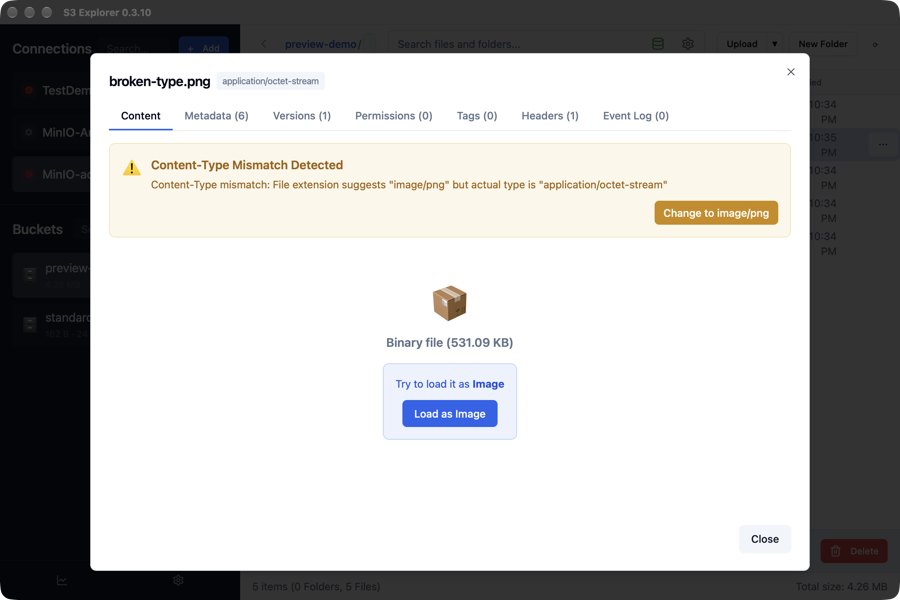
Note the second button. Changing the stored type edits the object's metadata, which you may not want on someone else's bucket; loading it as an image leaves the object untouched and shows it anyway.